Get Started with Ultra
Learn How to Log In, Check Your Browser, and Navigate Blackboard Ultra Courses
Get Started with Ultra
Logging in and Navigating Blackboard Ultra
Signing into Blackboard remains the same, as does the Global Menu where you will find the Institution, Activity, Courses, Calendar, Messages, and Grades pages.
Check your browser settings to make sure you are ready for Blackboard Ultra.
Watch videos about the Global Menu in Blackboard Ultra.
- Navigating the Courses Page
- Managing the Calendar
- Using Messages
- Set Notifications
- Customize Your Profile
- Checking Grades
Navigating Inside an Ultra Course
Most of the updates to Blackboard Ultra happened in the course view. The menus have moved position. A course can now scroll horizontally and vertically for easy navigation on your mobile device.
Ultra Course View
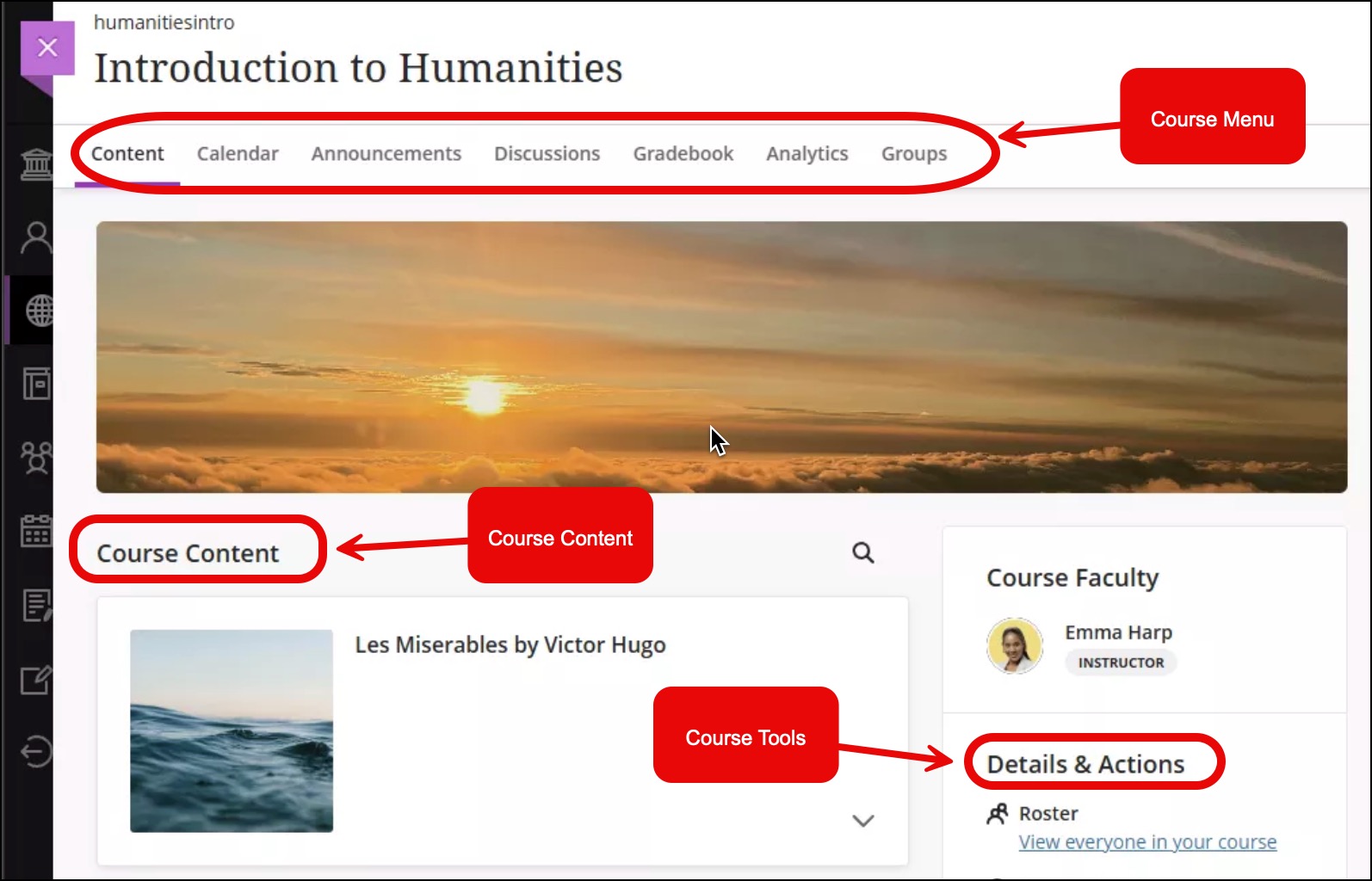
The Course Menu
The top Course menu is home to your daily tools to keep on track in your course.
- Content: This is where all the course content will be organized in learning modules.
- Calendar: Shows all the scheduled activities in a course.
- Announcements: Access course announcements your instructor has posted.
- Discussions: Access to the Discussions Board
- Gradebook: Gradebook will show your progress in the course.
- Messages: Access to send a message to your instructor.
- Groups: Any groups your instructor has created.
The Details & Actions Menu
The right-hand Details & Actions menu has all the tools you will need for your course. The menu may appear different in each of your courses depending on the combination of tools that an instructor has turned on or off. The below is a general list of tools you may find available in this menu.
- Roster: Access basic profile cards for your classmates. All course members appear in the roster. You can't remove yourself.
- Course Description: Provides a high-level summary of your course's goals, expectations, and pedagogical approach to the course.
- Progress Tracking: Check your progress relating to your course content, assignments, and tests. This may or may not be turned on for your course.
- Class Collaborate: Use an open Class Collaborate session as a convenient launch point for scheduled and impromptu meetings.
- Attendance: If your instructor uses the attendance feature, you can access your records.
- Groups: Review or join course groups your instructor has created.
The Books and Tools Menu
In the Books & Tools Menu, located at the bottom of the Detail & Action menu, contains additional tools that you may need for your course.
- First Day Materials: If your instructor is using an inclusive textbook, you will find your textbook for the course here.
- LibGuides: Access to the Library LibGuides for students, academic writing or for the class.
- Knight Success Hub: Communicate with your instructor, if they have indicated that they use this app.
- Zoom: Virtual video conferencing for your course.
- Publisher tools: You may also see links to Pearson, McGraw-HIll or other textbook platforms.