Assignments and Rubrics
Working with Assignments, Timed Assignments, and Rubrics
Assignments
Find your assignments on the Course Content page in the course. Your instructor may also organize assignments in folders and learning modules.
You can also access assignments in the Activity Stream and Calendar, if your instructor added due dates. If the due date has passed for an assignment, you’re alerted in the Important section of the activity stream.
Select Instructions to begin your assignment. Grade information, due dates and attempts will be listed on the right-hand side under Details & Information.
Submitting Timed Assignments
Learn more about timed assignments.
There may be a time limit set for your assignment just like a test. If the instructor has set a time limit, the Time Limit icon will appear in the Details & Information after the due date.
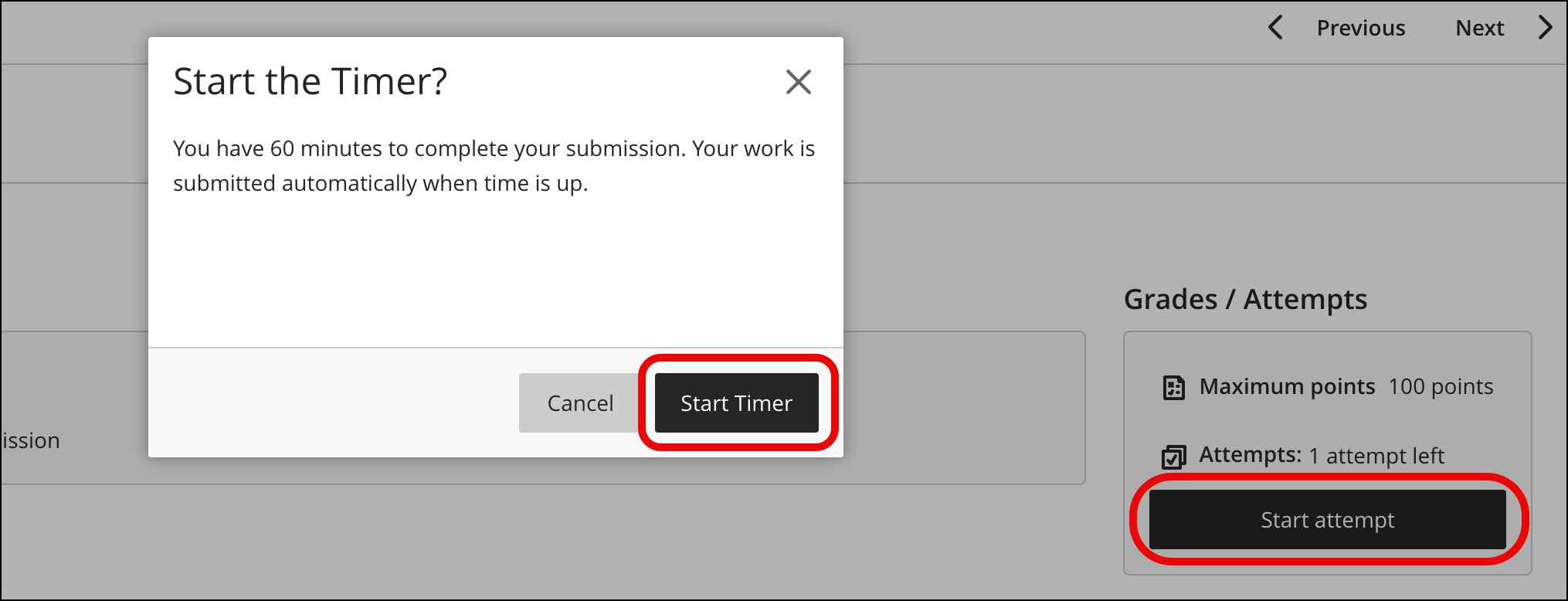
- Click Start Attempt to begin your assignment
- Click Start Timer to confirm the start of the assignment.
- Select Save and Close to save your work and close the assignment. You will be able to return to the assignment at a later date and resume your work.
- When you are done, select Submit to submit your work to the instructor for grading.
- If you run out the timer, your assignment may submit automatically.
- Once the assignment has submitted, a View Submission button will appear at the bottom. You may view your submission.
- Some instructors may allow you to continue to work on the assignment after the due date, but your assignment will appear as Late Submission.
Viewing Essay Rubrics
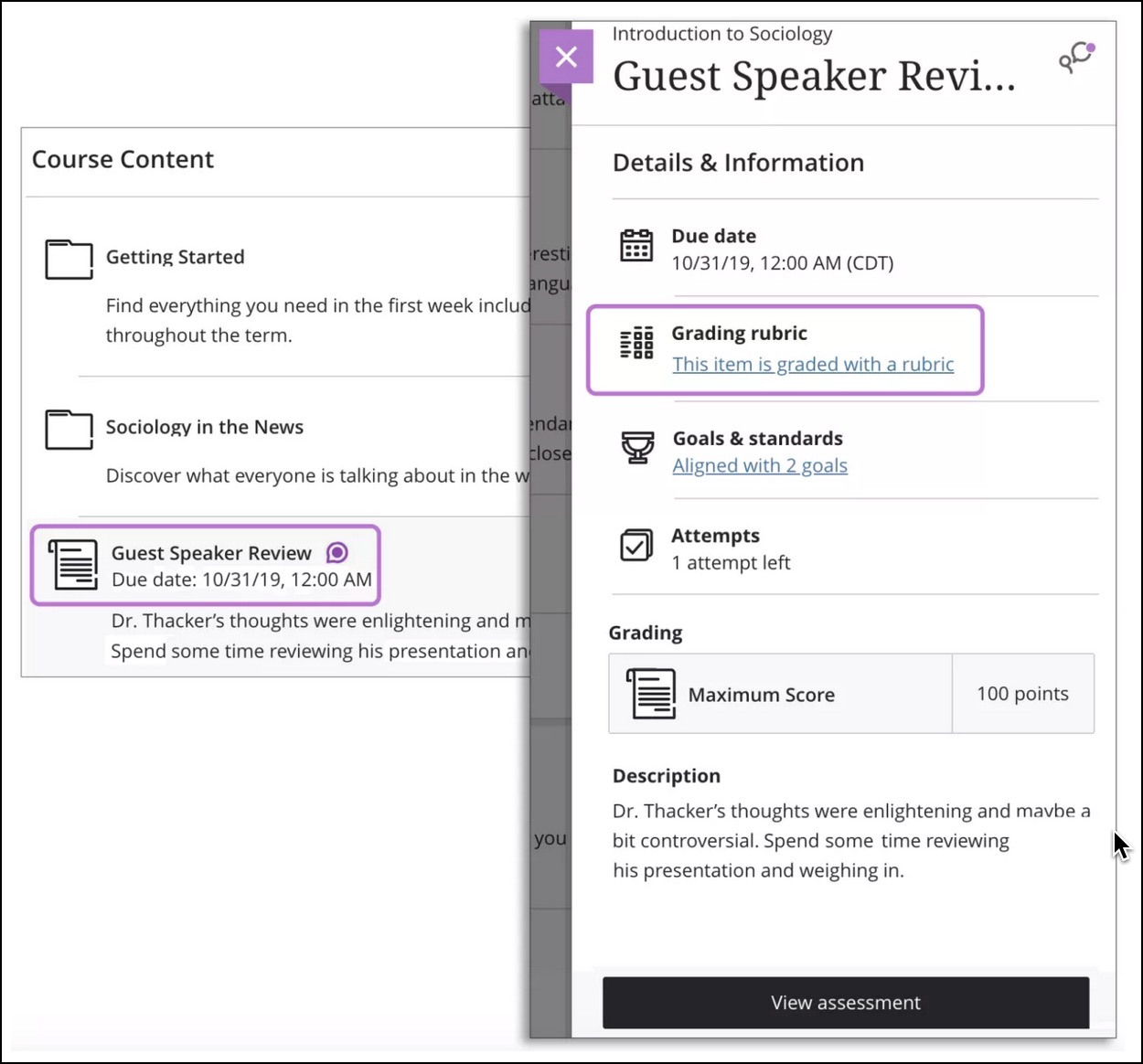
If your instructor added a rubric to an assignment, it will be located in the Details &Information area. Select This item is graded with a rubric to view the rubric. The rubric window can be expanded to show additional rubric details. Read more about rubrics.
Assignment Submission Receipt
Learn more about submitting an assignment
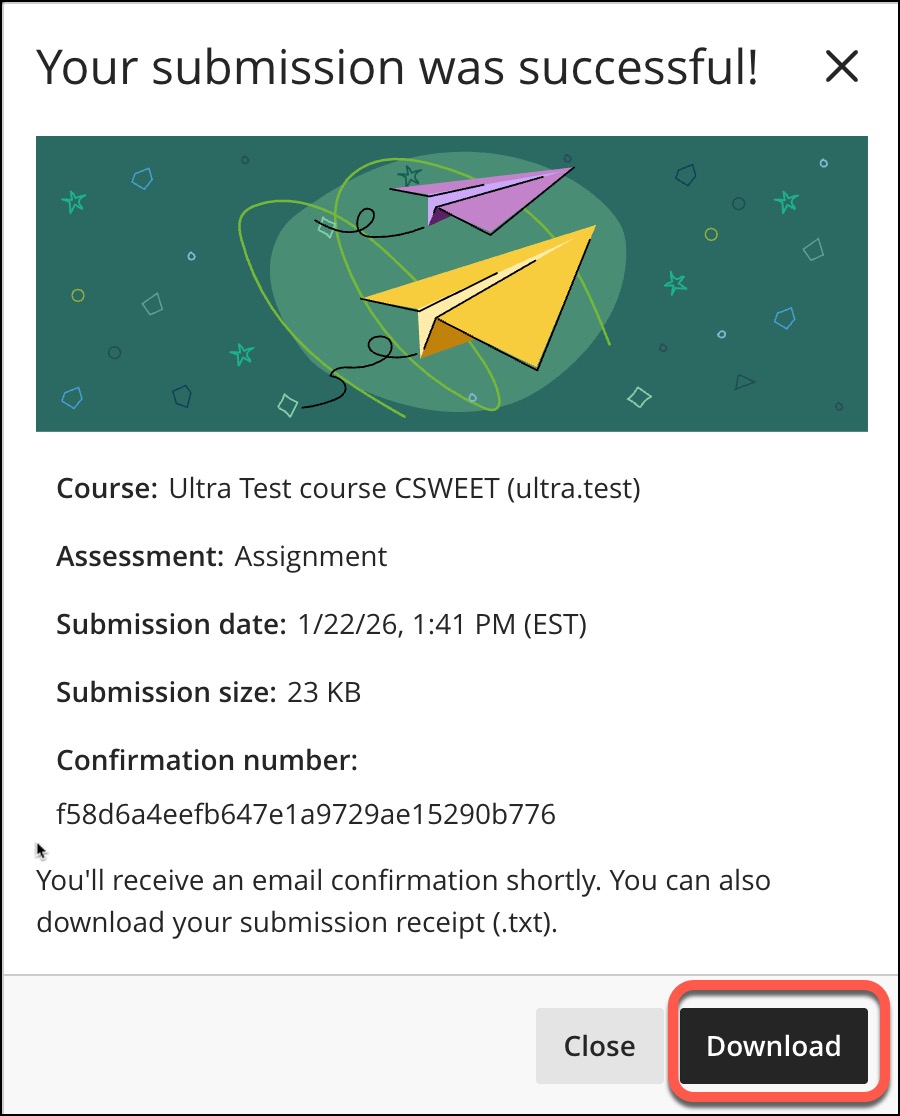
- Once you submit your assignment, the Submission Receipt Window will appear with the receipt details.
- An email will be sent to your CCRI email to confirm assignment submission.
- Click Download to download a TXT file with the submission log information. Save this file for proof of submission, in case of technical difficulty.