Adding Content
Adding, Deleting, and Working with the Text Editor and other content types
Content in Ultra
The Content Editor in Ultra is very similar to the editor in Blackboard. In your Blackboard Ultra courses, you can add a variety of content, such as text, audio and video in the Text Editor. Instructors may add a variety of different types of activities in your course for you to engage with other students.
Let's walk through the Content Editor and the different types of content you may encounter in your Ultra courses.
Working with the Content Editor
The Content Editor is how you submit work to the instructor. The editor allows you to add and format text, images, audio and video. It will also allow you to upload your assignment files or write an essay in an exam.
List of Content Editor Icons and Options
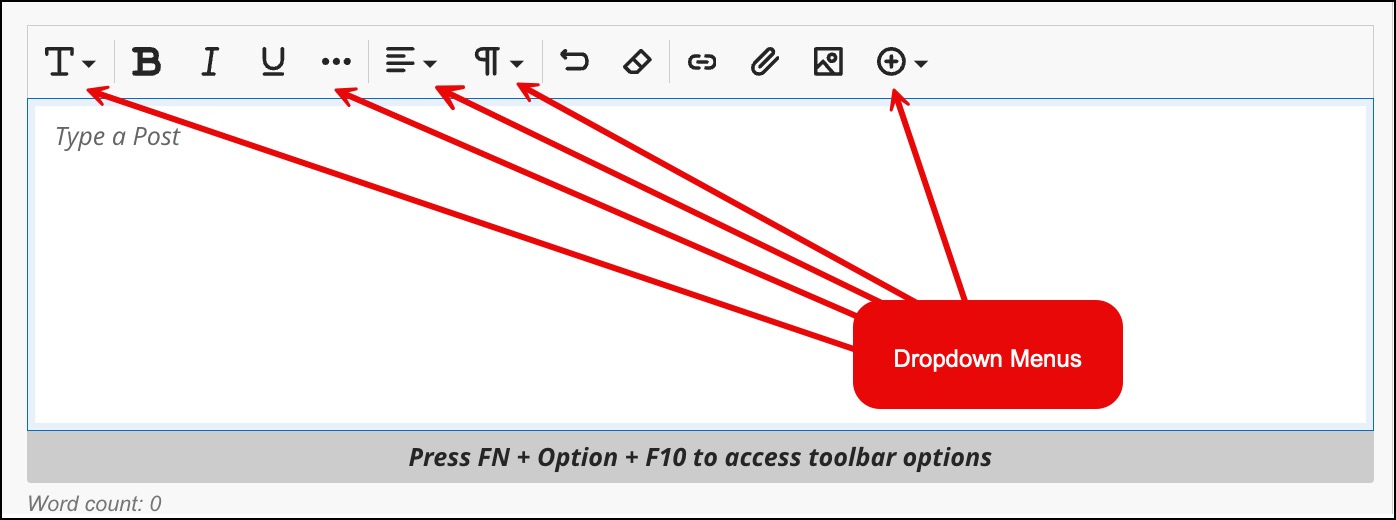
The Content Editor has multiple dropdown menus that provide more editing tools. The options that are available in the editor vary with where you are adding text.
Content Editor Features
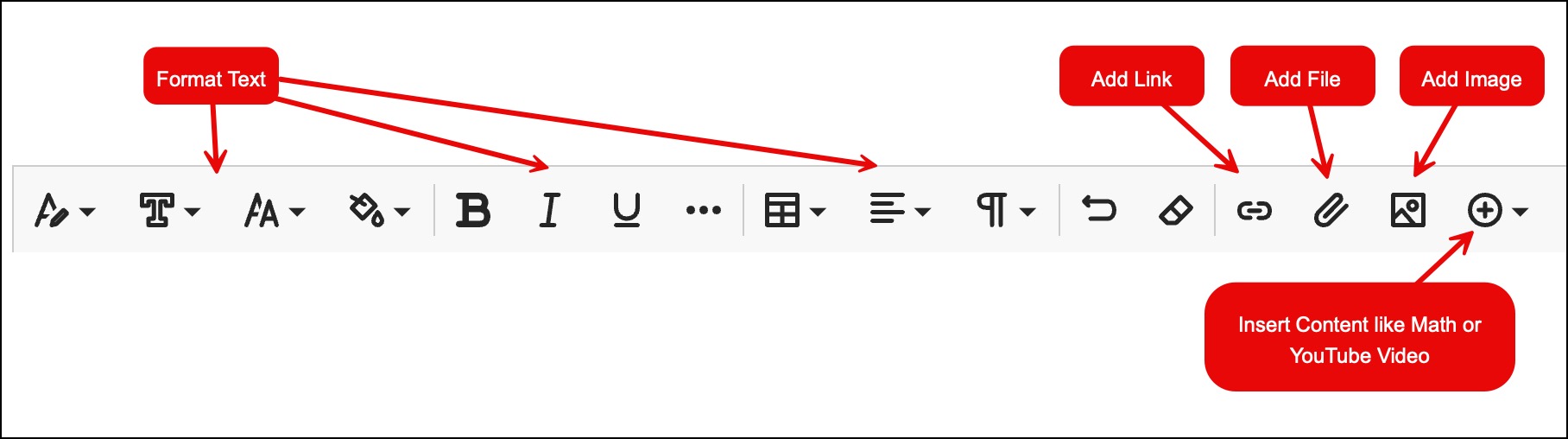
Adding a Link
- To add a link, select the Link icon, represented by a chain symbol.
- Enter or paste the Link URL.
- You can also add a link to text you've already entered by selecting the section of text that you want to turn into a link.
- The link text is automatically added based on the text that you've selected in the editor.
Add an Image
- Directly insert images into the text editor by selecting the Image button. Only JPEG and PNG files can be uploaded into the text editor.
- Choose an aspect ratio for the image. You can keep the original aspect ratio, or convert it to a landscape or portrait display. The white grid lines show you what part of the original image will be displayed on screens.
- Adjust the slider to zoom in or out, and you can select and drag the grid lines to change the focus. Select Next when you’re ready to insert the image.
- Enter a display name. We recommend also adding alt text, to make the image accessible to users with screen readers. Select Save to embed your image.
Insert Content
There are several types of internet content that may be added with the Text Editor. The content selector (plus button) will allow you to choose from the below.
- Math Editor: Opens the Math Editor.
- Image from URL: Add or edit an image URL.
- Embed Media: Embed a video.
- YouTube Video: Browse and add content hosted on the external content provider YouTube.
- Cloud Storage: Browse and add content from your cloud storage accounts. Learn more on how to add files from cloud storage apps.