Blackboard Ultra for Students
Learning Blackboard Ultra
A small number of online courses will have the opportunity to try Blackboard Ultra for the second half of the spring semester. Much will appear the same, however, the Blackboard Ultra course interface is different than the one you may have used in the past. Whether you are new to CCRI or a returning student, the guide will walk you through navigation, organization and where to find all the tools you will need to be successful in your courses.
Blackboard Ultra Workshops
Attend one of the upcoming 30-min webinars to get comfortable with the Blackboard Ultra interface. All are welcome to attend.
The workshop will walk you through:
- Navigation and Course Menus
- Moving Through Course Content
- Submitting Assignments and Tests
- Posting to Discussions
- The New Gradebook
Upcoming Dates
No registration needed.
Day in the Life of a Student on Blackboard Ultra
More Ultra Tutorials

Learn More About the Changes to Blackboard

Dive into Learning Modules and the Text Editor

Learn how to post and reply on a discussion or journal

Learn to submit assignments, review rubrics, and work with SafeAssign
Learn how to take and submit a test or form
Learn how to access grades and understand your progress
How Do I Know I Am in a Blackboard Ultra Course?
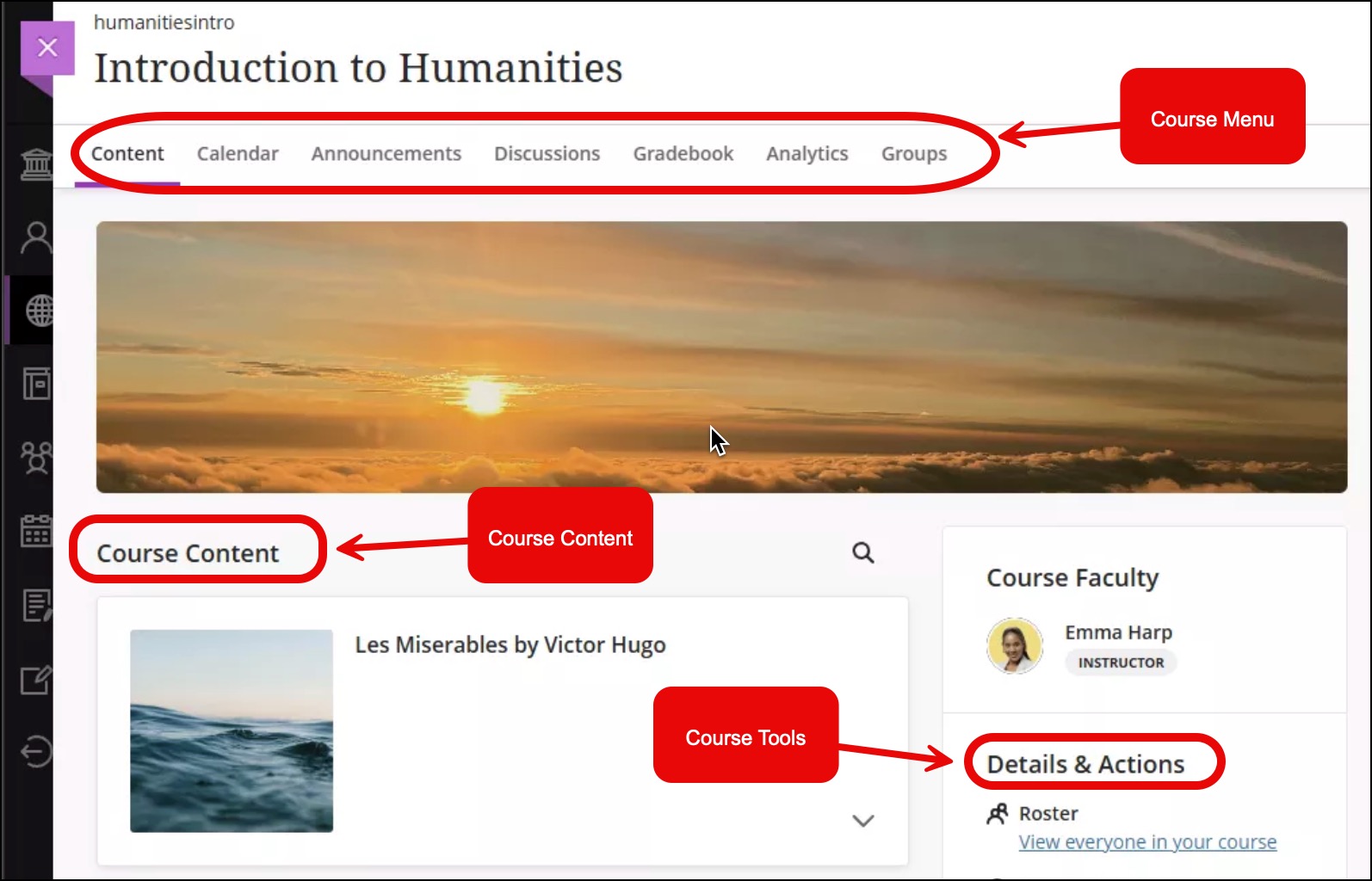
Blackboard Ultra is a new updated interface for your courses. Once you click on a course, if it is an Ultra course, you will see a course menu at the top and Details and Actions menu on the right side of the page.
If your course looks like the below image, you are in a Blackboard Ultra course.
If the course menu is on the left-hand side, you are in a Blackboard course. Go to Blackboard Help for Students for support videos and instructions.