Checking PDFs for accessibility
PDF Accessibility Best Practices
-
Start with an accessible source document: Whether you start in Word, Google Docs, PowerPoint, or InDesign, we recommend making your source document as accessible as possible before converting to PDF.
-
Keep accessibility settings when you convert the document: When converting to PDF, use settings that retain tags and accessibility formatting. Avoid "Print to PDF" settings as they will remove your tags and accessibility formatting.
-
Does it really need to be a PDF? Consider if a PDF is really the best way to share the information. Would a different format be easier to make accessible and work better for the content? Before you create a PDF, here are a few considerations:
-
If your PDF is a form: consider using a Modern Campus Form or Microsoft from. A web form is also easier to create and much more accessible than a PDF.
-
If your PDF is informational: consider sharing the content on a web page. It’s much easier to maintain and update web pages, and HTML is generally more accessible than PDFs. Your audience is also more likely to read a web page than to download and read a PDF, especially on mobile.
-
More on PDF Best Practices:
PDFs on the Web - Appropriate Use
Checking PDFs for Accessibility with Adobe Acrobat Pro
Step 1. Does document have text?
How to test: Try selecting text using a mouse, or select all text using Edit > “Select All” from the Acrobat menu.
If No, this is an image file and is not accessible. Covert to text using Edit > Scan &
OCR > In the file > "Recognize text", or use the search feature and search for Recognize
text.
Step 2. Is document tagged?
How to test: Go to File Properties (Ctrl+D in Windows, Command+D in Mac). In the bottom left corner of the Document Properties dialog, see the “Tagged PDF” field.
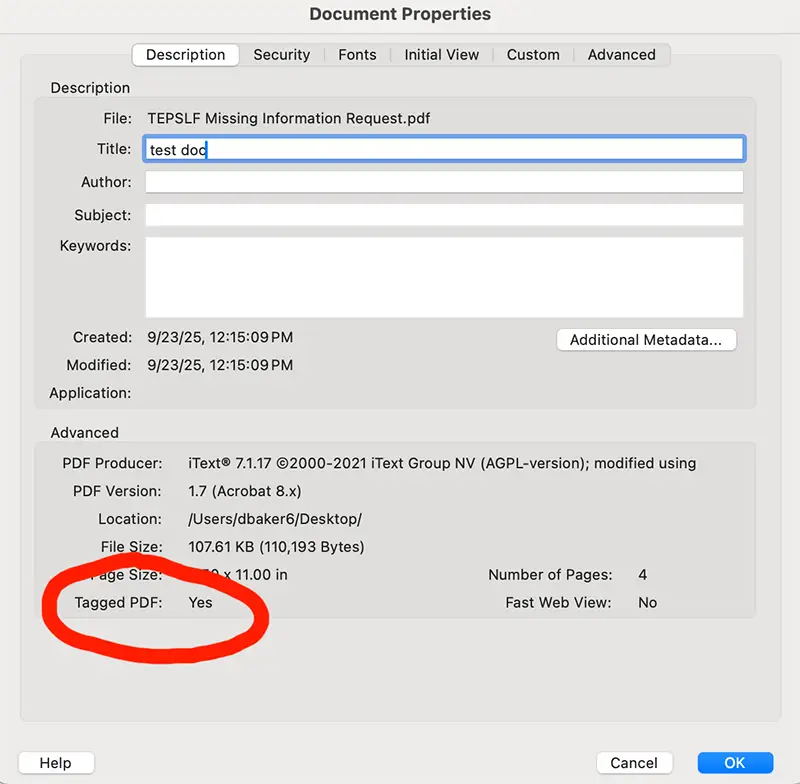
If No, this document needs to be tagged. Tags provide the structure on which accessibility is built. Add tags by selecting All Tools > View More (if all your tools are not showing) > Prepare for Accessibility > “Automatically tag PDF”
Step 3. Ensure image accessibility
Image Tags: Images should be tagged as <figure> and they should have useful alt text.
Adding Alt Text: In the Prepare for Accessibility panel, select “Add alternate text.” A pop up will guide you through your images in the document. You can add alt or edit alt text, or select “Decorative” for unimportant images.
Step 4. Check Color Contrast
Text and other elements in your PDF should have sufficient color contrast against the background. Color Contrast should be 4.5:1 or greater for standard size text. If you are using Adobe's Accessibility Checker you will always be prompted to check the color contrast. If you're not sure about the contrast, use a tool (such as the Color Contrast Analyser) to check.
If you find contrast errors at this stage it is always better to go back to the source document to correct the contrast when possible. This is why it is so important to start with an accessible source document.
Step 5. Set File Properties
Add or Verify Metadata
- Add Title and Author (File > Document Properties > Description Tab)
- Set Doc Title to Display (Document Properties > Initial View > Window Options > Show > Document Title)
- Add Language (Document Properties > Advanced Tab > Reading Options >Language)
Be Mindful of Security Settings
If using, check the “Enable text access to screen reader devices for the visually impaired” check box in the “Permissions” section of the security settings.
This applies to security settings that restrict permissions to the document (i.e. copy and paste) not just adding a password.
Have A Question?
Contact Computer Science and CybersecurityAt the Community College of Rhode Island, our Computer Science and Cybersecurity programs are designed to equip students with essential skills for the digital age.