Accessible Course Readings
Assigning Accessible Course Readings
This page is designed to help faculty prepare for compliance with Title II of the Americans with Disabilities Act. It provides preliminary guidance on assigning readings in ways that meet ADA requirements and highlights the accessibility features of some of our most frequently used research tools. If you are using a less common resource, please reach out to the Library directly for assistance.
For more detailed information on accessibility features by platform, please refer to the Accessibility Features in Library Databases LibGuide . This page will continue to be updated as new information and features become available.
One of the simplest ways to make assigned readings more accessible is to choose materials available in full-text HTML format. The guidelines below outline how to find accessible materials through the CCRI Library.
- Navigate to the Library Website located at ccri.edu/library . On the homepage click the button labeled “Articles & Databases”
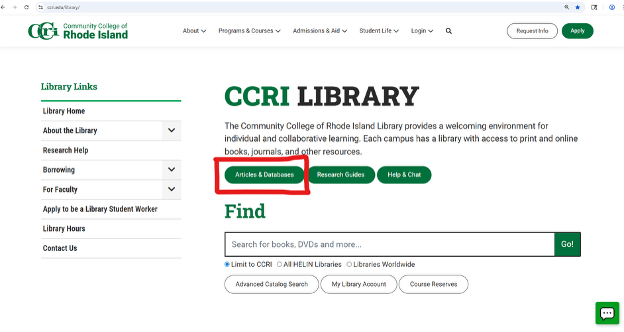
- This will bring you to the Library’s A-To-Z list which contains all the electronic
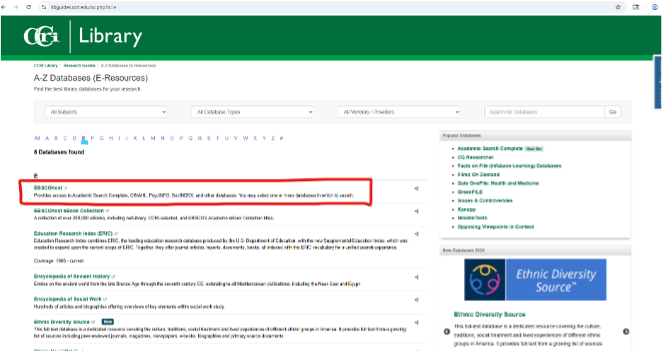
resources offered by the CCRI Library. One of our main database providers is EBSCO,
which hosts many of our academic journals. To get there click the letter “E” and EBSCOhost will be the top result. If you are interested in our other electronic resources,
check out our Accessibility Features in Library Databases LibGuide (https://libguides.ccri.edu/accessibilityfeatures)
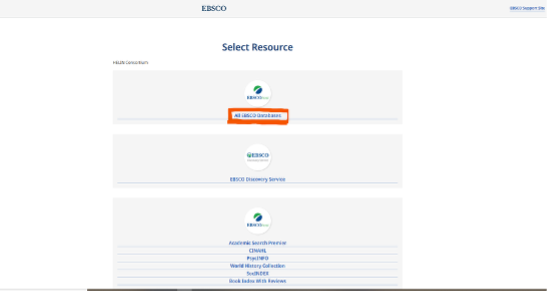
- Selecting EBSCOhost will open the EBSCO Directory which features all the EBSCO databases CCRI subscribes
to. To search multiple EBSCO databases, select the “All EBSCO Databases” link at the top of the page.
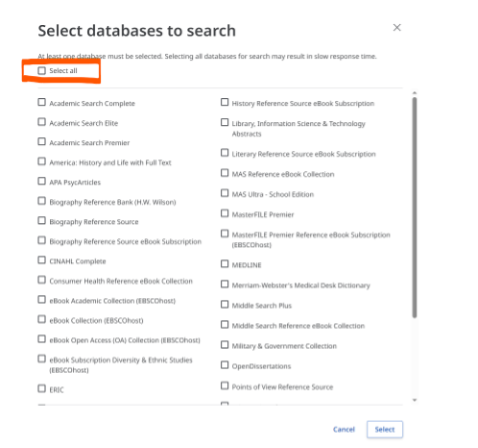
- Before entering keywords into the search box, select which databases you would like
to search in by clicking the link next to the “searching” From this list you can choose specific databases you would like to search or select
them all.
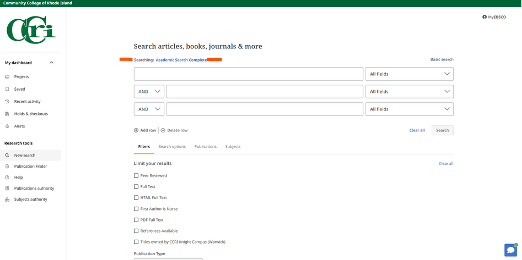
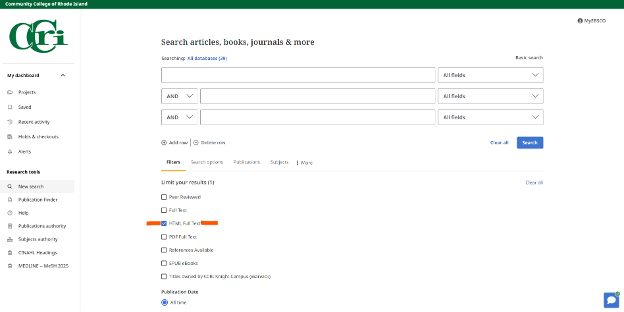
- After selecting the databases you want to search, enter your keywords. Before you
hit the Search button, make sure to check the “HTML Full Text” box to properly filter your results.
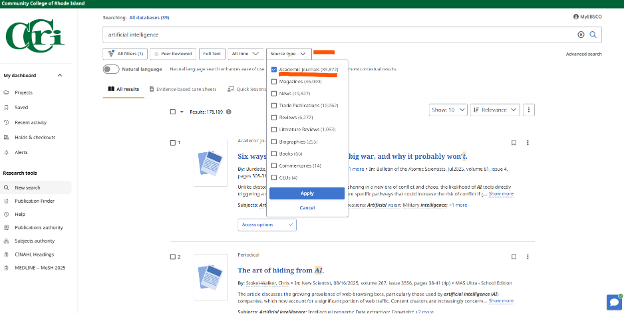
- Once you hit the search button, you can further filter your results using the buttons
at the top of the page. To view academic journals only, select "Source Type" and check the box for "Academic Journals."
-
If the selected reading is not available in HTML Full Text but is available as a PDF, you will need to check the PDF for accessibility[BROKEN LINK].
-
Different platforms may offer different features, capabilities, and filtering tools. Not all systems label HTML Full Text the same way. Some may refer to it as "Online Full Text" or simply "Full Text," so be sure to review the options carefully.
-
If you have any questions, you can chat with a Librarian in real time using the chat box in the bottom-right corner of your screen (available on any Library webpage). Chat is available during Library operating hours, and any messages sent outside of those hours will be answered the next business day.
-
You can also schedule an appointment with a Librarian here or stop by any campus Library and visit the reference desk.
-
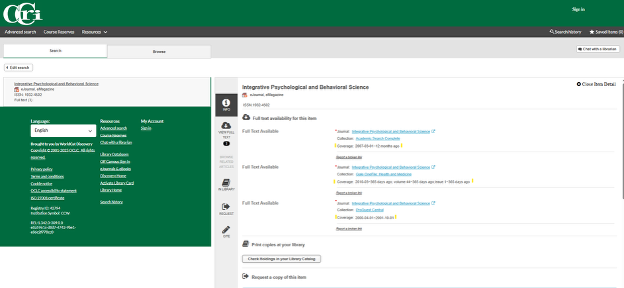
If you already know the title of the article you're looking for or the name of the journal, use WorldCat A to Z to locate it within the Library's holdings.
Using WorldCat A to Z allows you to see which Library databases contain the journals
you’re looking for, along with the coverage dates. Direct links to the journals also
provide access information and vendor-specific accessibility tools.
For further assistance you can schedule an appointment with a Librarian or stop by any campus Library and visit the reference desk.
The CCRI Library provides online access to a wide selection of eBooks. While some vendors include full-text content in HTML format, this is not always the case. Access terms are set by publishers and may include restrictions. The following guide shows you how to search for eBooks in the CCRI Library catalog and where to find details about any usage limits.
- Navigate to the Library Website located at ccri.edu/library. On the homepage, you’ll find a search box where you can enter keywords or a book
title.
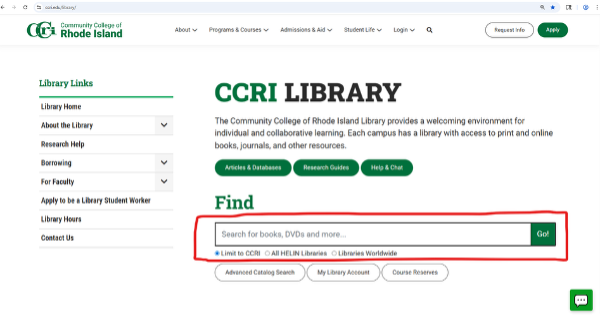
- After entering your search query, you’ll be taken to the Library’s catalog. When searching,
make sure to focus on resources that the Community College of Rhode Island has access to, and be sure to check the box under Book for ”eBook.”
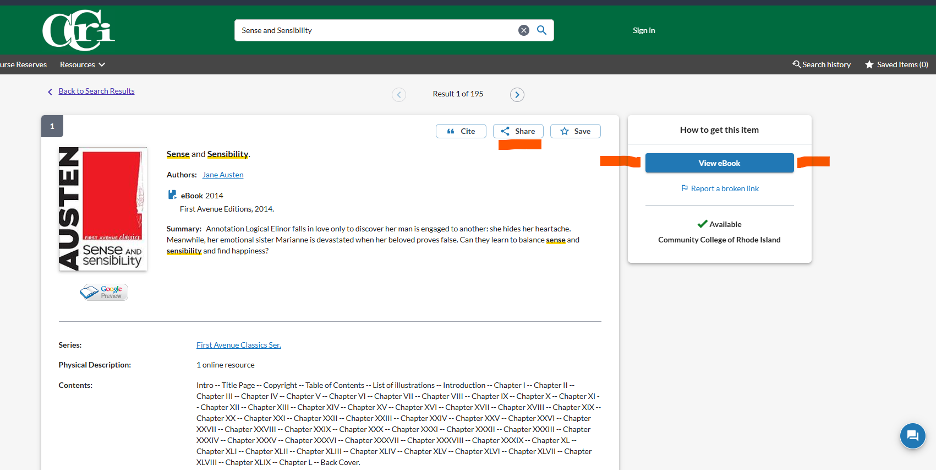
- When you find the item you’re looking for, click the title to go to its catalog entry. This page will show a shareable link, publishing information, and access options. Click the blue ”View eBook” button to go to the vendor’s website. You can also scroll down and see which vendor provides the title under the dropdown menu labeled ”Access Online.”
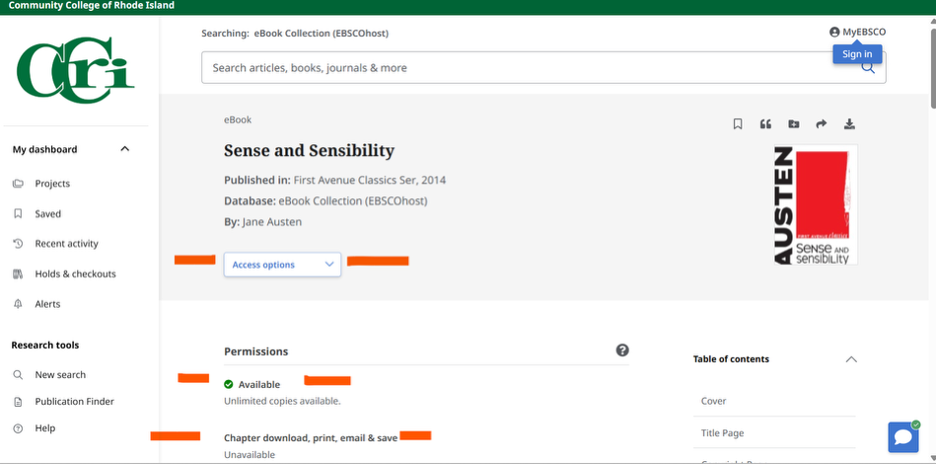
- On the vendor’s website, you will see details about the eBook format under “Access Options” and the number of copies available under“Permissions.” While the layout may vary from platform to platform, these categories remain consistent
though their titles may differ.
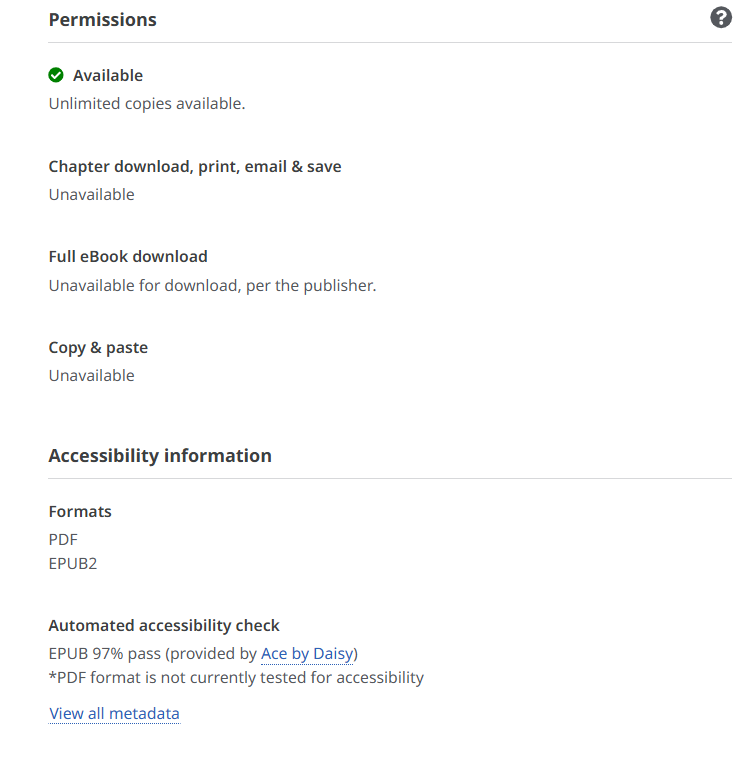
- Further down the page, you will also find additional information about permissions
and accessibility.
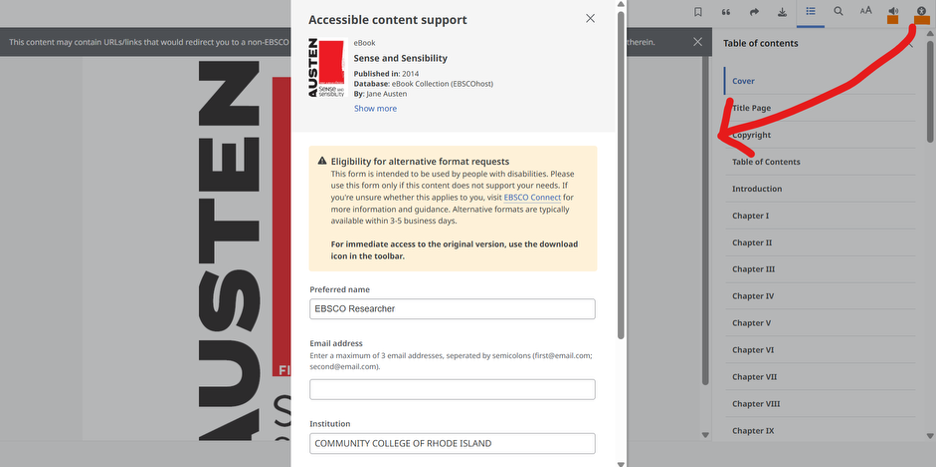
- Many of our platforms include accessibility features such as text-to-speech and translation
tools. The digital readers themselves also provide accessibility support, giving users
the option to request alternative formats, like a Word document.
Different platforms may offer different features and capabilities. If you have any questions, you can chat with a Librarian in real time using the chat box in the bottom-right corner of your screen (available on any Library webpage). Chat is available during Library operating hours, and any messages sent outside of those hours will be answered the next business day.
You can also schedule an appointment with a Librarian here or stop by any campus Library and visit the reference desk.
For more detailed information on accessibility features by vendor, please refer to the Library’s Accessibility Features in Electronic Resources LibGuide. This page will continue to be updated as new information and features become available.