CCRI Tutorials
New Students
Before accessing CCRI systems for the first time, new students are required to reset their password. This step ensures account security and proper access to campus resources.
Please refer to the resources below for detailed instructions and support:
- New Students
- Current Students
- Login Instructions
- Finding Your Username
- Change Your Password
- Reset Forgotten Password
- Your E-mail Address
- Multi-Factor Authentication (MFA)
- Still Need Help?
Find Your Username
Please visit the CCRI Account Username lookup page located online through the How to Look-up your username link.
- At the ID Number prompt please enter either your CCRI ID or your Social Security number.
- Enter your date of birth in the format of mmddyyyy in the space provided.
- Press the Look Up button to process your inquiry. If you make a mistake, please click the Clear button and start over.
- Your CCRI Account username, CCRI email address and CCRI ID number and will be returned
Your email address is:
Change your CCRI Account password
- Go to the Microsoft Self Service Password Reset tool
- Enter your full CCRI e-mail - [email protected]
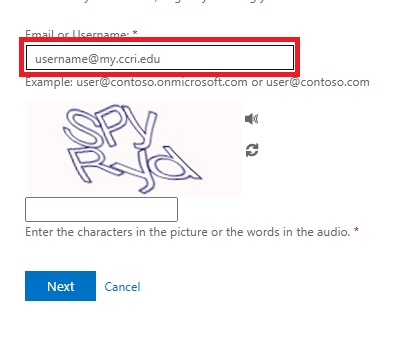
- Complete the CAPTCHA
- Select Email my alternate email, then press the Email button*
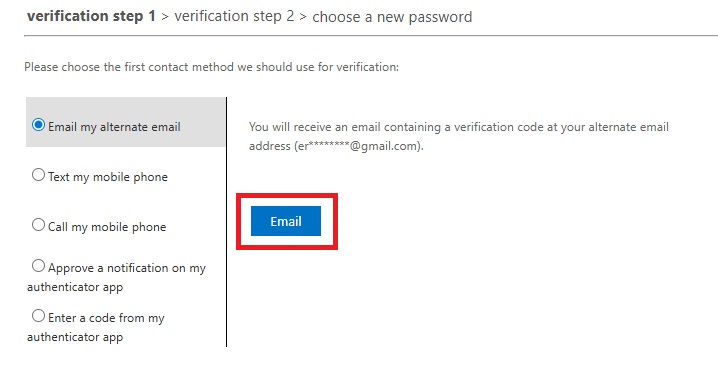
- The password reset code will be sent to the personal e-mail on file
- After inputting the verification code, you will be prompted to reset your password
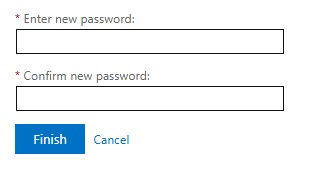
Please be advised that the password must have at least 14 characters and consist of both upper case, lower case letters and numbers or special characters
* If the alternate email is incorrect, please complete the Authentication Reset Form.
Login Instructions
- Go to www.ccri.edu
- On a desktop: Click Login at the center of the screen, then select MyCCRI
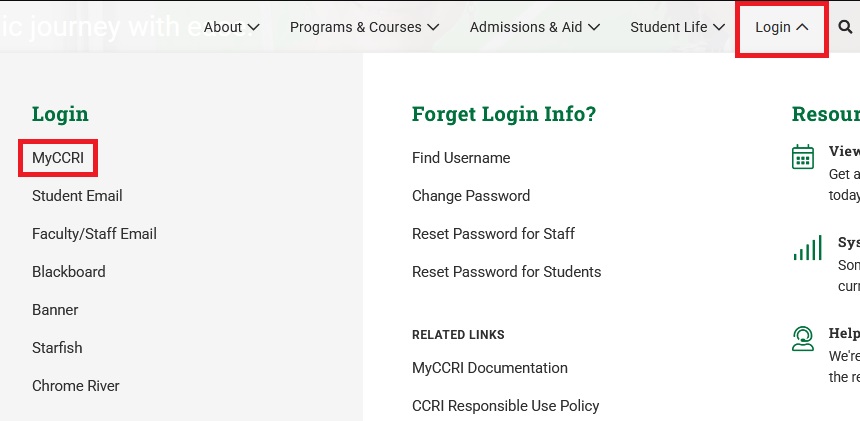
- Select MyCCRI
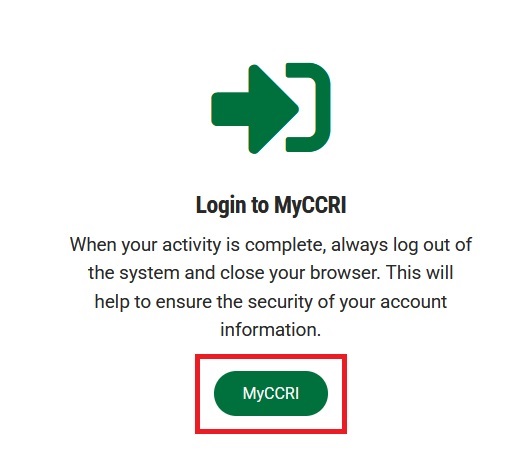
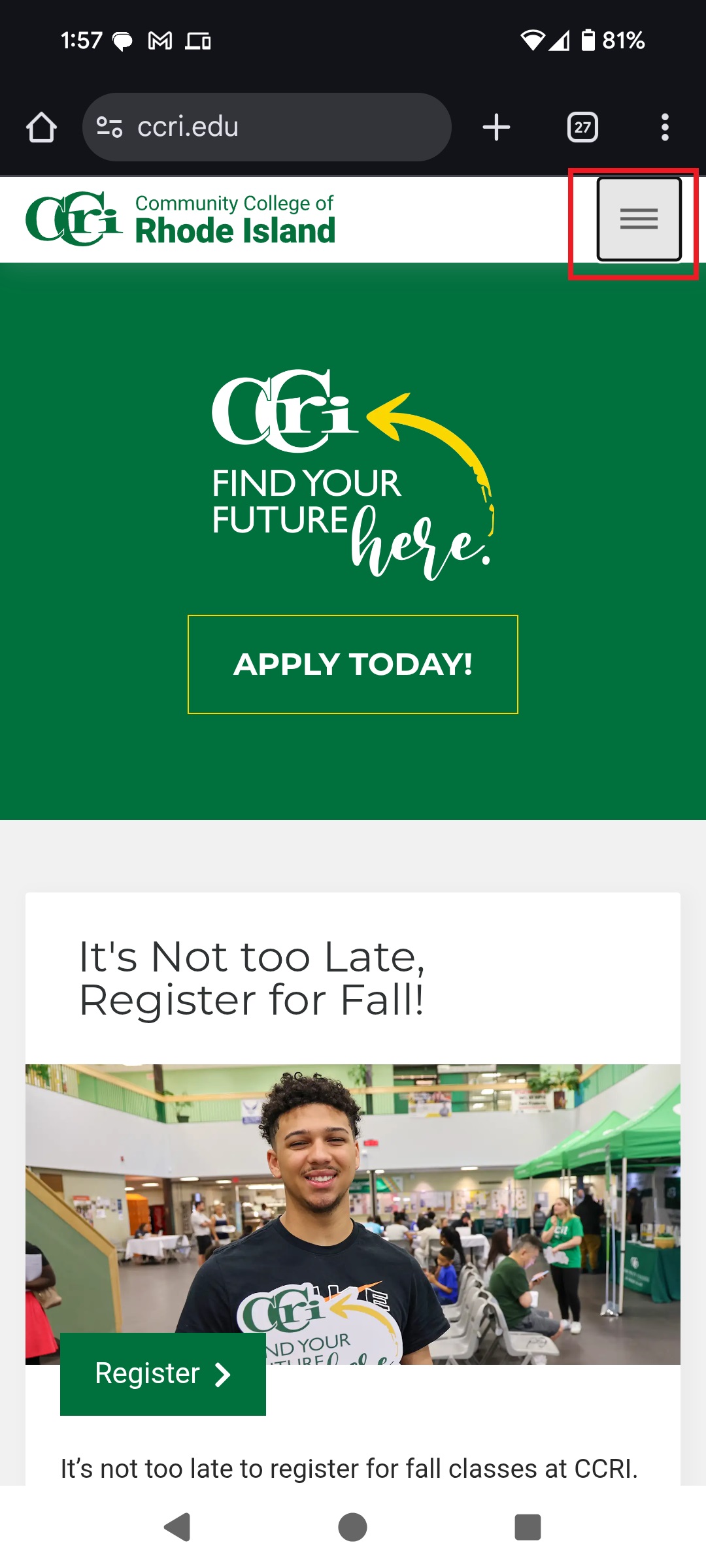
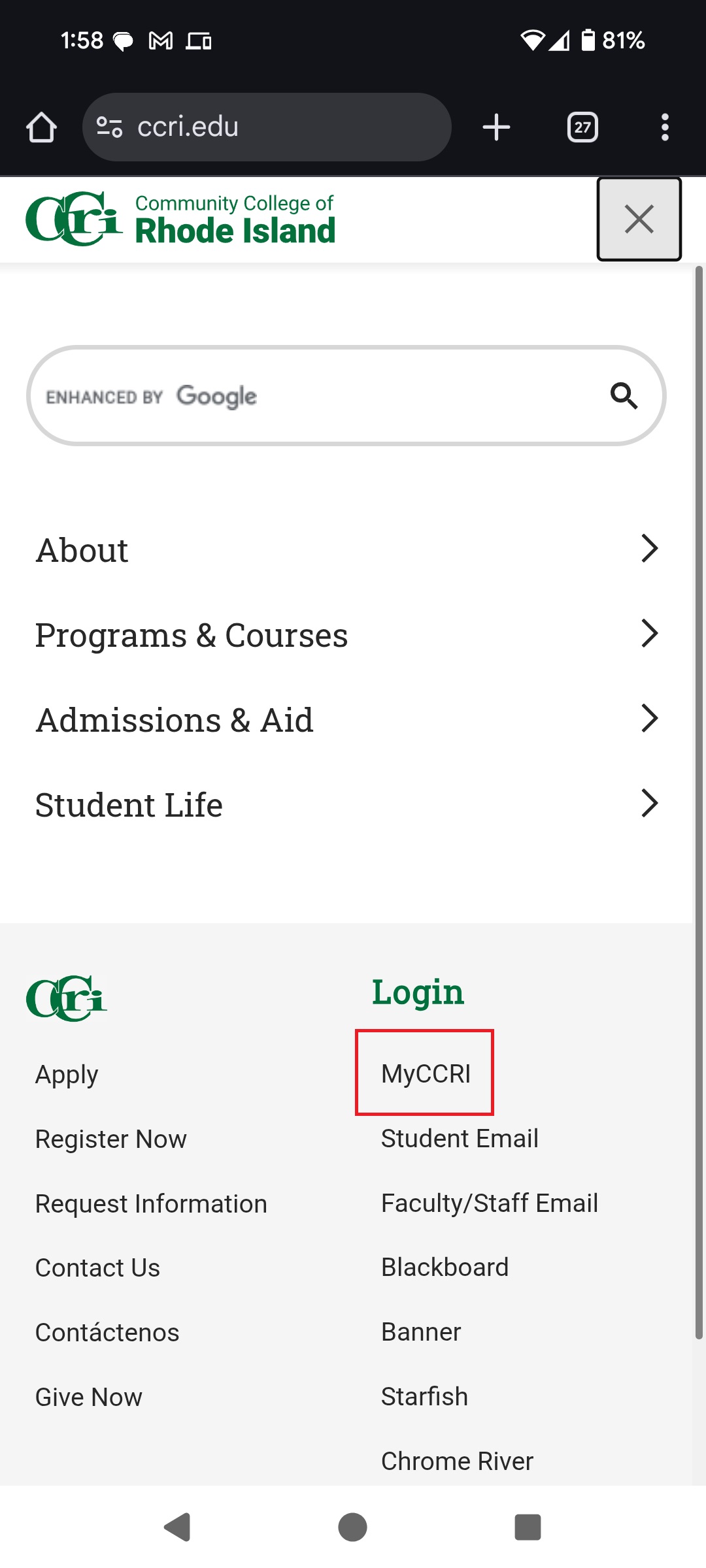
- On mobile: Click the three horizontal bars on the top right, then select MyCCRI
- On a desktop: Click Login at the center of the screen, then select MyCCRI
- Enter your full CCRI e-mail ([email protected])
- Enter your password
Multi-Factor Authentication (MFA)
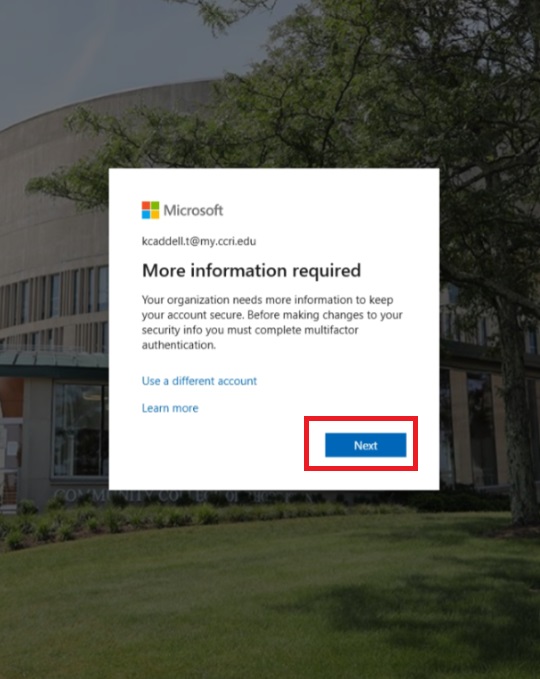
You will be prompted to set up MFA upon your first login:
- You will be prompted to set up MFA upon your first login. Please click Next to continue
- Then, select I want to set up a different method
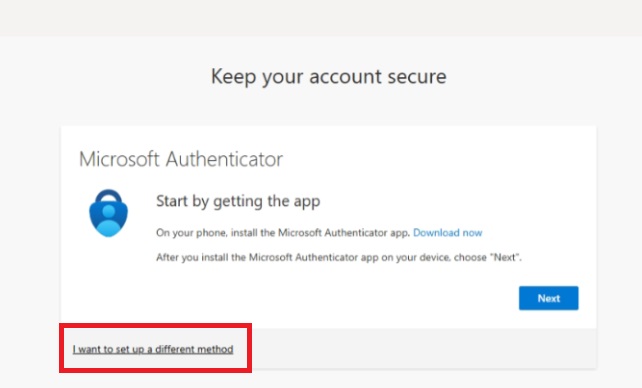
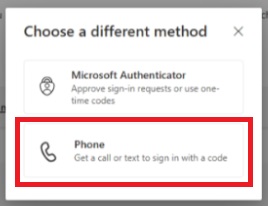
- Click Phone
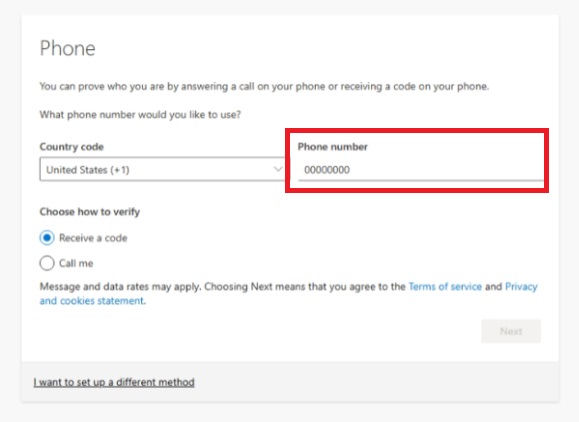
- Then enter your cell phone number and click Next
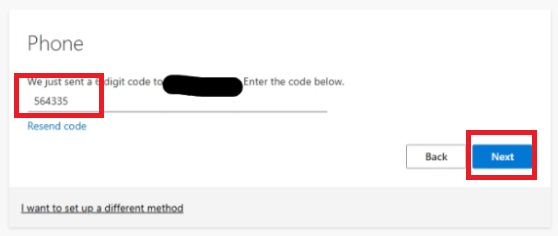
- Enter your verification code and click Next
- Congratulations, you have successfully registered for MFA!
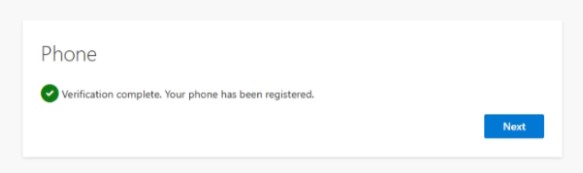
- Select Next, and then select Done to continue to your account!
Current Students
Reset your CCRI Account forgotten password
- Go to the Microsoft Self Service Password Reset tool
- Enter your full CCRI e-mail - [email protected]
- Complete the CAPTCHA
- Select Text my mobile phone on the left-hand side
- Enter your mobile phone number and select Text
- After inputting the correct verification code, you will be prompted to reset your password.
Still Need Help?
Still feeling stuck? Please call the CCRI IT Help at (401) 825-1112, or e-mail us
at [email protected].