CCRI Student Account Password Setup
Introduction
This guide will help you set your initial CCRI account password using Microsoft’s Self-Service Password Reset (SSPR).
Before You Begin:
-
Make sure you know your full CCRI student email address ([email protected]).
-
If you do not know your CCRI student email address, use the Username Lookup Tool
-
Microsoft will send a verification code to the personal email address you provided when applying to CCRI.
-
If this email is not on file or is outdated, submit the Authentication Reset Form before continuing.
Step 1: Navigate to Microsoft SSPR
-
Navigate to ccri.edu
-
Select the Login drop-down menu → Reset Password for Students
Or go directly to: https://passwordreset.microsoftonline.com/
Step 2: Enter Your Information
-
Enter your full CCRI email address
-
Enter the characters from the Captcha image in the field below it
-
Note: Options next to the Captcha allow you to listen to the code or refresh for a new one
-
-
Click Next
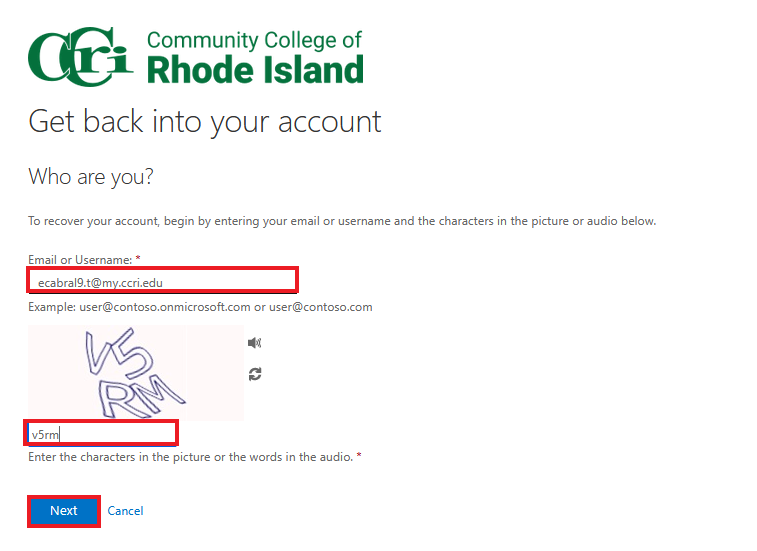
If you see a “We’re sorry” page: This means we do not have a personal email on file for your account. Please submit the Authentication Reset form.
Step 3: Identity Verification
-
Under Verification Step 1, the option “Email my alternate email” will appear.
-
Verify that you have access to the registered email address (partially hidden for security)
-
Select Email to send the verification code.
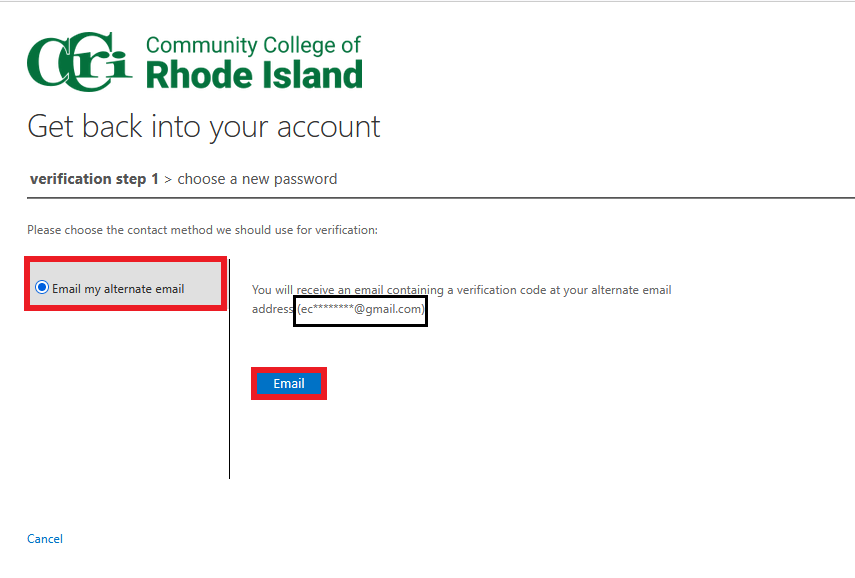
If you do NOT have access to the registered email, submit the Authentication Reset Form
Step 4: Enter the Verification Code
-
Check your registered personal email inbox for the verification code
-
Enter the verification code in the field provided and click Next
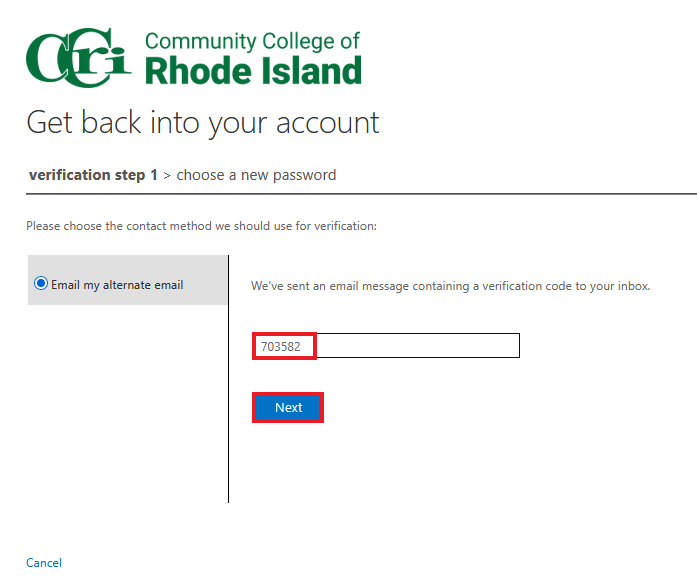
Step 5: Set Your New Password
Password Requirements:
-
At least 14 characters
-
Must include at least 2 of the 3 complexity options:
-
Uppercase and lowercase letters
-
Numbers
-
Special characters: ~!@#$%^&*_-+=|(){}[]:;'<>,.?/`
-
If your password does not meet the requirements, you will see the message:
“Unfortunately, your password contains a word, phrase, or pattern that makes it easily
guessable. Please try again with a different password.”