Entering Final Grades in MyCCRI
Entering Final Grades in MyCCRI
All final grading is done within MyCCRI. You must log in to your MyCCRI account in order to access this function. If you are not sure of your MyCCRI username and/or password, please contact the Help Desk at 825-1112.
Faculty tips for successfully entering grades
| Instructions | Screenshots |
|---|---|
Step 1Log in to your MyCCRI account and click on the For Faculty tab to access the Faculty Grading Channel. Click "Enter or View Final Grades" |
 |
Step 2Select the term for which you are entering mid-term grades and click the Submit button. |
 |
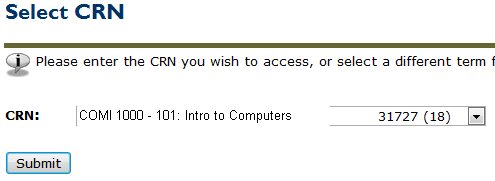
Step 3Click on the down arrow to the right of the CRN box. Select the CRN for the course for which you are entering final grades and click the Submit button. |
 |
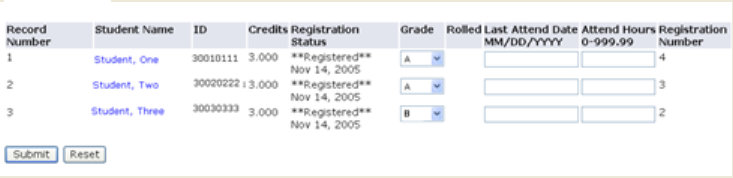
Step 4In the Grade column, click on the drop-down arrow to select the appropriate grade. After entering grades, click the Submit button. If a faculty member wishes to mark a student with a WP, WF, I, IC (Math lab only), F or NA, the faculty member MUST insert a "Last Attend Date." The "Last Attend Date" needs to be inserted in a specific format as follows: MM/DD/ YYYY . If a "Last Attend Date" is not entered correctly for any student earning a grade of WP, WF, I, IC, F or NA – THE ENTIRE GRADE ROSTER WILL BE REJECTED. No grades will be recorded for this course. |
 |
|
Please submit your grades often as there is a 60 minute time limit. |